
Instructions_eng
Wymagania zaliczenia
How do I complete the placement test?
In order to complete each part of the placement test, you must do the following:
1) Click on the link to the part of the test you want to complete (e.g., Composition or Part 1).
2) Click on the Attempt quiz now button.
3) Read the information in the pop-up window and click Ok.
You have 70 minutes to complete Part I and 20 minutes to complete Part II. Timer is located in top right corner of the screen.
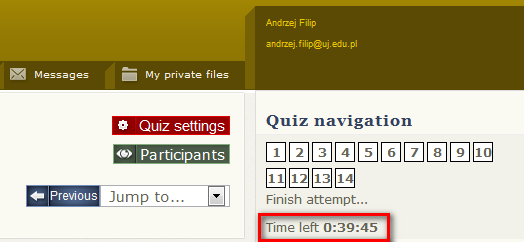
Please remember that your answers will be checked automatically. It is important that you do not insert any unnecessary characters such as extra spaces before or after your answer.
4) In order to submit each part of the test, click on the Submit all and finish button. Please do not click on Save without submitting button.
How do I install Polish characters on my computer?
Instructions for Windows Vista and Windows 7
- Click Start and then Control Panel.
- In Control Panel, if you are in Classic View, click on Control Panel Home (top left corner).
- Open Clock, Language, and Region.
- Click on Regional and Language Options.
- Click the Keyboards and Languages tab and then click Change keyboards.
- Under Installed services, click Add.
- In the Add Input Language dialog box, select the Polish (programmer's)from the list and click OK.
- The keyboard layout you added will be included in the list. To set the new layout as your default, select it from the list. Click OK to save your changes.
- You can switch between different input languages (= keyboard languages) by clicking on the Language Bar button or by pressing the Alt + Shift keys.
- To write Polish characters with this layout, use Right Alt with the corresponding letter - A for ą, C for ć, E for ę, L for ł, N for ń, O for ó, S for ś, Z for ż and X for ź. For capital letters, press Right Alt, Shift and the corresponding letter.
Instructions for Windows XP
- Click Start and then Control Panel.
- In Control Panel, if you are in Category View, click on Switch to Classic View (top left corner).
- Open Regional and Language Options.
- Click on the Languages tab.
- Under Text services and input languages, click on the Details button.
- Under Installed services, click Add.
- In the Add Input Language dialog box, choose the Polish input language and Polish (programmer's) keyboard layout.
- Click OK twice. You should now see a language indicator in the System Tray (located at bottom right hand corner of the desktop by default). You can switch between different input languages (= keyboard languages) by pressing the Alt + Shift keys.
- To write Polish characters with this layout, use Right Alt with the corresponding letter - A for ą, C for ć, E for ę, L
for ł, N for ń, O for ó, S for ś, Z for ż and X for ź. For capital letters, press Right Alt, Shift and the corresponding letter.
How do I return to the main placement test page?
To return to the main placement test page click on the TPO2012 abbreviation on the navigation bar in top left-hand corner.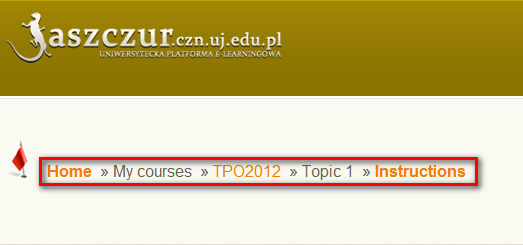
Ostatnia modyfikacja: poniedziałek, 10 lutego 2025, 13:40